Best Chrome Extensions to Improve Your Browsing Experience in 2026


Asif Mohammad Sovon
Asif Mohammad Sovon, IT Assistant at Bangladesh Air Force and Fileion tech writer, simplifies tech t...
Google Chrome is the most widely used web browser in the world, currently holding a market share of over 60%. With a user base exceeding 3 billion people, it serves as the primary gateway to the internet for the vast majority of desktop and mobile users.
High-speed performance, a minimalist interface, and seamless synchronization across devices drive its dominance. A significant factor in its continued success is the ability to integrate third-party tools via the Google Chrome Web Store, allowing users to build a highly personalized browsing environment.
What are Chrome extensions?
Chrome extensions are small software programs that add new features to the Google Chrome browser. They allow users to customize their browsing experience by modifying web page content or adding browser-level tools. These programs are built using web technologies like HTML, CSS, and JavaScript.
Users can find and install these tools through the official Chrome Web Store. Once an extension is added, it typically appears as a small icon in the browser toolbar. These tools can perform various tasks, such as blocking advertisements, managing passwords, translating text, or automating repetitive data entry. They are designed to make the browser more efficient and tailored to specific professional or personal needs.
Fileion's List of the Best Chrome Extensions
Choosing the right extensions can significantly improve your daily workflow. The following list includes highly-rated tools that serve various purposes, from visual customization to advanced data management.
1. Picture in Picture
The Picture-in-Picture extension allows users to watch videos in a floating window. This window stays on top of other tabs and applications, allowing for seamless multitasking. It is compatible with most major video platforms and allows for resizing and repositioning the video frame anywhere on the screen.
Rating: 3.9 [2.4K ratings]- As of now, 2026
Click Here to Add
2. Website Security and Safety Checker
A website security checker helps users identify potential risks before interacting with a site. These extensions scan for malware, phishing attempts, and expired SSL certificates. They provide real-time alerts to ensure that your personal data remains protected while browsing various domains.
Rating: 4.5 [10.7K ratings]- As of now, 2026
Click Here to Add
3. Dark Reader
Dark Reader is a visual utility that enables dark mode for every website. It inverts bright colors to create high-contrast, dark themes that are easier on the eyes during night use. Users can adjust brightness, contrast, sepia filters, and font settings to match their preferences.
Rating: 4.7 [12.8K ratings]- As of now, 2026
Click Here to Add
4. Font Ninja
Font Ninja is a tool designed for designers and developers to identify fonts on any webpage. By hovering over text, the extension displays the font name, size, line height, and color. It also allows users to bookmark fonts and see how they appear in different styles.
Rating: 4.4 [783 ratings]- As of now, 2026
Click Here to Add
5. Bulk Media Downloader
Bulk Media Downloader is a versatile tool for capturing various media types, including audio and video files. It monitors network requests to find media links that are often hidden from standard downloaders. This extension supports batch processing, allowing users to select multiple files and download them simultaneously with organized naming conventions.
Rating: 3.8 [174 ratings]- As of now, 2026
Click Here to Add
6. Text Blaze
Text Blaze is a productivity tool that uses keyboard shortcuts to insert text templates. Users can create snippets for frequently used emails, phrases, or code blocks. It supports dynamic commands, such as current dates and form fields, to automate repetitive typing tasks.
Rating: 4.9 [1.7K ratings]- As of now, 2026
Click Here to Add
7. Momentum
Momentum replaces the standard new tab page with a personal dashboard. It features a daily photo, an inspiring quote, and a weather report. It also includes a task manager and a focus goal to help users stay organized throughout the workday.
Rating: 4.5 [13.7K ratings]- As of now, 2026
Click Here to Add
8. Video Speed Controller
The Video Speed Controller extension provides precise control over HTML5 video playback. It allows users to speed up, slow down, or rewind videos using simple keyboard shortcuts. This is particularly useful for quickly scanning long tutorials or slowing down technical demonstrations.
Rating: 4.5 [4.3K ratings]- As of now, 2026
Click Here to Add
9. Wayback Machine
The Wayback Machine extension integrates the Internet Archive into the browser. It allows users to view archived versions of a webpage to see how it looked in the past. It also automatically checks for archived copies when a 404 error is encountered on a live site.
Rating: 4.2 [317 ratings]- As of now, 2026
Click Here to Add
10. Image Eye
Image Eye is an image downloader that allows users to find and save all images on a webpage. It provides filters to sort images by size, format, and dimensions. Users can select specific files or perform a bulk download of every visual asset on the page.
Rating: 4.9 [15.5K ratings]- As of now, 2026
Click Here to Add
Final Verdict
The best Chrome extensions are those that solve a specific problem without slowing down the browser. For productivity, Text Blaze and Momentum are excellent choices. If you work with media or design, Font Ninja and Image Eye provide essential data at a glance.
Always review extension permissions before installation to ensure your privacy is maintained.
Click Here to Download Google Chrome
FAQ
Q1: How do I install a Chrome extension?
Ans: To install an extension, visit the Chrome Web Store and search for the desired tool. Click the Add to Chrome button and confirm the installation. The extension icon will then appear in your browser toolbar.
Q2: Are Chrome extensions safe to use?
Ans: Most extensions are safe, but it is important to check the developer's reputation and the permissions requested. Only download extensions from the official Chrome Web Store and avoid those that ask for more data than necessary for their function.
Q3: Do extensions slow down my browser?
Ans: Running too many extensions simultaneously can consume significant system memory (RAM). This may lead to slower browser performance. It is recommended to disable or remove extensions that you do not use regularly.
Q4: Can I use Chrome extensions on my mobile?
Ans: The standard Google Chrome mobile app for Android and iOS does not currently support extensions. Extensions are primarily designed for the desktop version of the browser.
Q5: How do I manage or delete extensions?
Ans: Click the puzzle piece icon in the Chrome toolbar and select Manage Extensions. From this menu, you can toggle extensions on or off or click Remove to delete them from your browser entirely.
Comments
Let us know about your thoughts
Explore more articles related to Google Chrome
Here you will find all the latest tips and tricks about Google Chrome. Also you will get many solution of problems which you may face while using this app.

Published at: Feb 14, 2025
How to reset Google Chrome Browser
In this blog, I am going to show you how to reset Google Chrome Browser settings to...
Published at: Feb 14, 2025
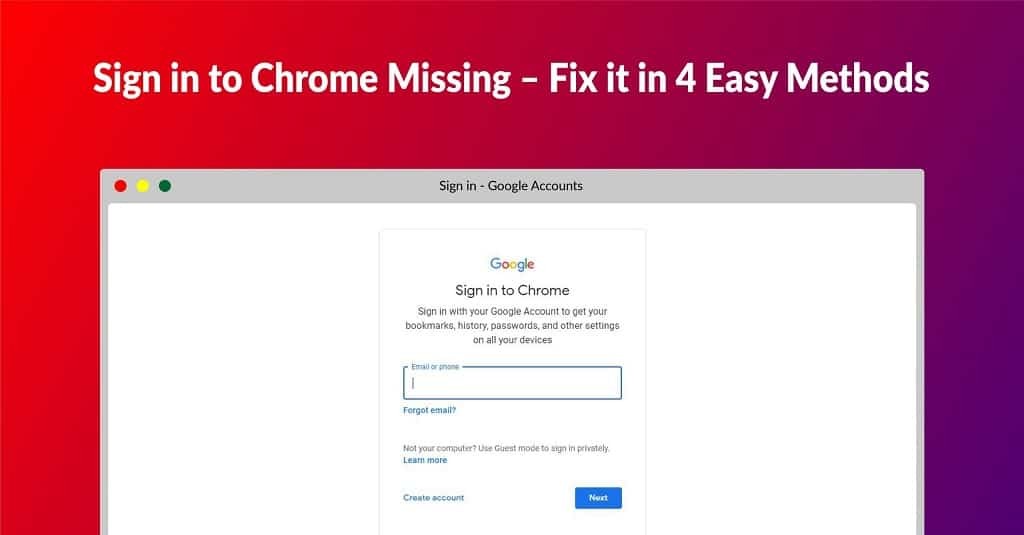
Sign in to Chrome Missing
In this blog, I am going to show you how you can fix the “Sign...

Published at: Jan 04, 2026
How to install Google Chrome on Windows
Most Windows computers come with Microsoft Edge as the default browser. While Edge is capable, you...
Published at: Jan 19, 2026
Best Chrome Extensions to Improve Your Browsing Experience in 2026
Google Chrome is the most widely used web browser in the world, currently holding a...


Browsing The Internet With Functionality And Ease
You need a reliable browser to access the Internet, and many browsers are available. However, Google Chrome is the most prominent. It is an internet browser with many functionalities and robust security. The developer team consistently updates Google Chrome, continuously improving the user experience.