How to install Google Chrome on Windows


Asif Mohammad Sovon
Asif Mohammad Sovon, IT Assistant at Bangladesh Air Force and Fileion tech writer, simplifies tech t...
Most Windows computers come with Microsoft Edge as the default browser. While Edge is capable, you might prefer the speed and familiarity of Google’s ecosystem. If you find your current browser slow or incompatible with certain websites, switching to Chrome is a common solution.
Installing a new browser is one of the first things many users do on a fresh Windows setup. It changes how you interact with the internet, affecting everything from your work productivity to how you stream media. Having a reliable browser ensures your data stays synced across your phone and computer.
This guide will show you exactly how to download, install, and configure Google Chrome on your Windows PC. You will also learn how to set it as your default browser, so all links open in Chrome automatically.
Let’s dive into the introductions before moving to the hands-on actions.
What is Google Chrome?
Google Chrome is a fast, free web browser developed by Google. It is built on the open-source Chromium project, which provides the foundation for many modern browsers. It is designed to be minimal, stable, and highly secure.
Students, professionals, gamers, and casual users all rely on Chrome for its versatility. It allows you to browse the web, run complex web applications, and manage your digital life in one place. By using a Google Account, you can access your history, passwords, and bookmarks on any device.
Key Features
-
Speed: Chrome is optimized for fast page load times and quick JavaScript execution.
-
Security: It includes built-in protection against phishing and dangerous sites.
-
Synchronization: You can sync your data across Windows, Android, and iOS devices.
-
Extensions: The Chrome Web Store offers thousands of tools to customize your experience.
-
Google Integration: It works seamlessly with Gmail, Drive, and YouTube.
-
Tab Management: Features like Tab Groups help you stay organized during heavy research.
Step-by-Step Guide: How to Install Google Chrome
1. Getting Started
Before you begin, ensure your computer meets the minimum system requirements. You need Windows 10 or Windows 11 to run the latest version of Chrome. Older versions of Windows are no longer officially supported by Google for security updates.
Make sure you have an active internet connection. You will also need administrator rights on your PC to permit the installation. If you are using a work computer, check with your IT department first.
2. Initial Setup
To get the installer, you must use your current browser, which is usually Microsoft Edge.
-
Open Microsoft Edge from your taskbar or start menu.
-
Navigate to the Fileion. To ensure you get the safest and most optimized version for your system, you can download Google Chrome directly from Fileion.
-
Look for the Download Chrome button on the page.
-
A prompt may ask if you want to allow the site to download a file. Click Allow or Save.
3. Core Action Step
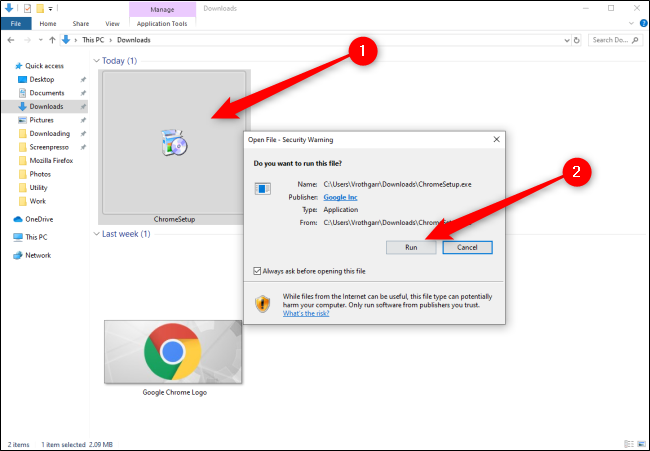
Once the download finishes, you need to run the setup file. This file is usually named ChromeSetup.exe.
-
Open your Downloads folder and double-click the setup file.
-
A User Account Control (UAC) window will appear asking if you want to allow this app to make changes. Click Yes.
-
The Google Update tool will launch. It will automatically download the full browser files from Google’s servers.
-
Stay connected to the internet. The installation happens automatically after the download completes.
-
Once finished, a Chrome window will open by itself.
4. Customization & Optimization
Now that Chrome is installed, you should optimize it for your needs.
-
Sign In: Click the profile icon in the top right corner. Sign in with your Google Account to bring over your saved data.
-
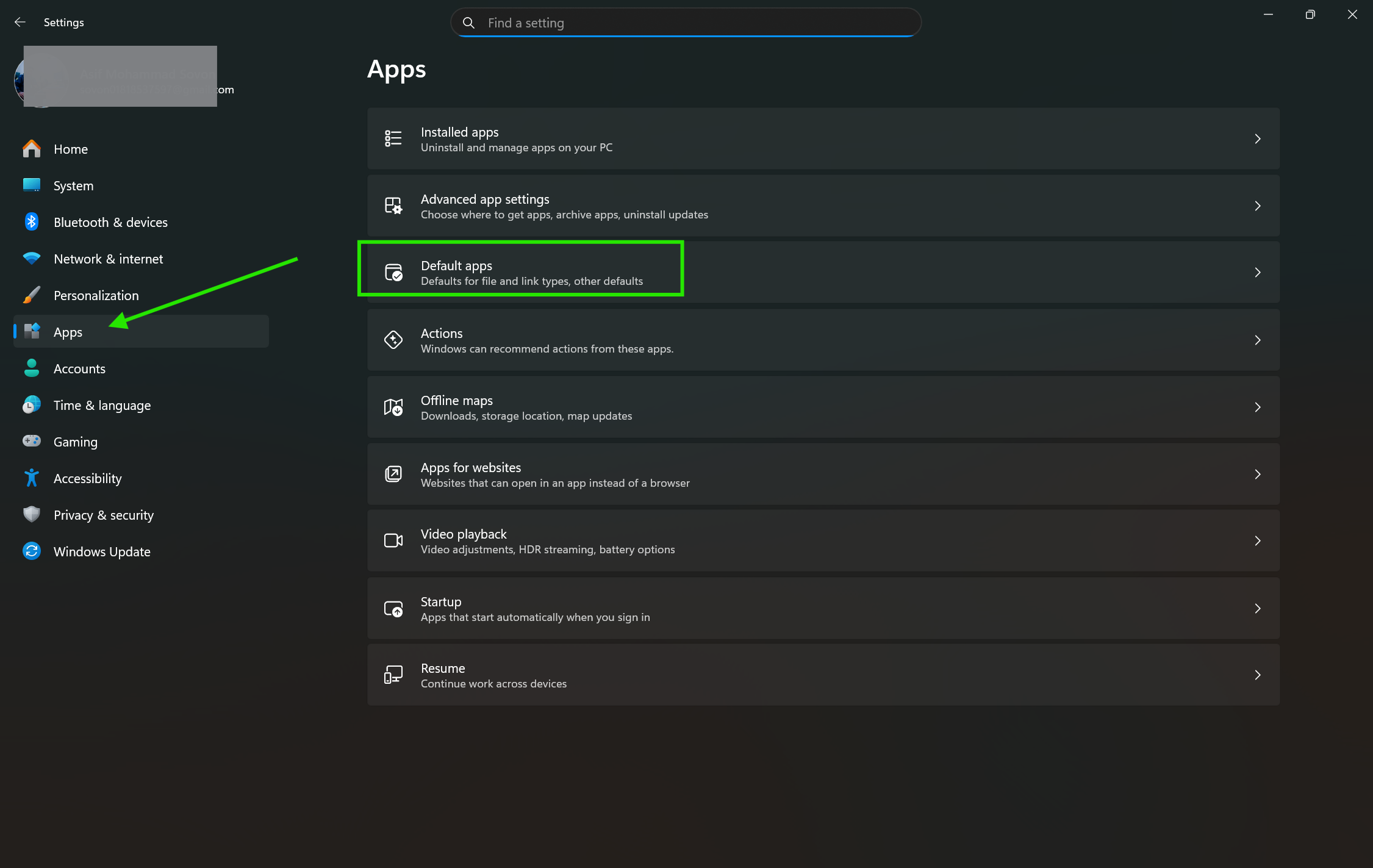
Set as Default: Windows will still try to use Edge for links. To fix this, go to Settings > Apps > Default Apps. Search for Google Chrome and click Set Default.
-
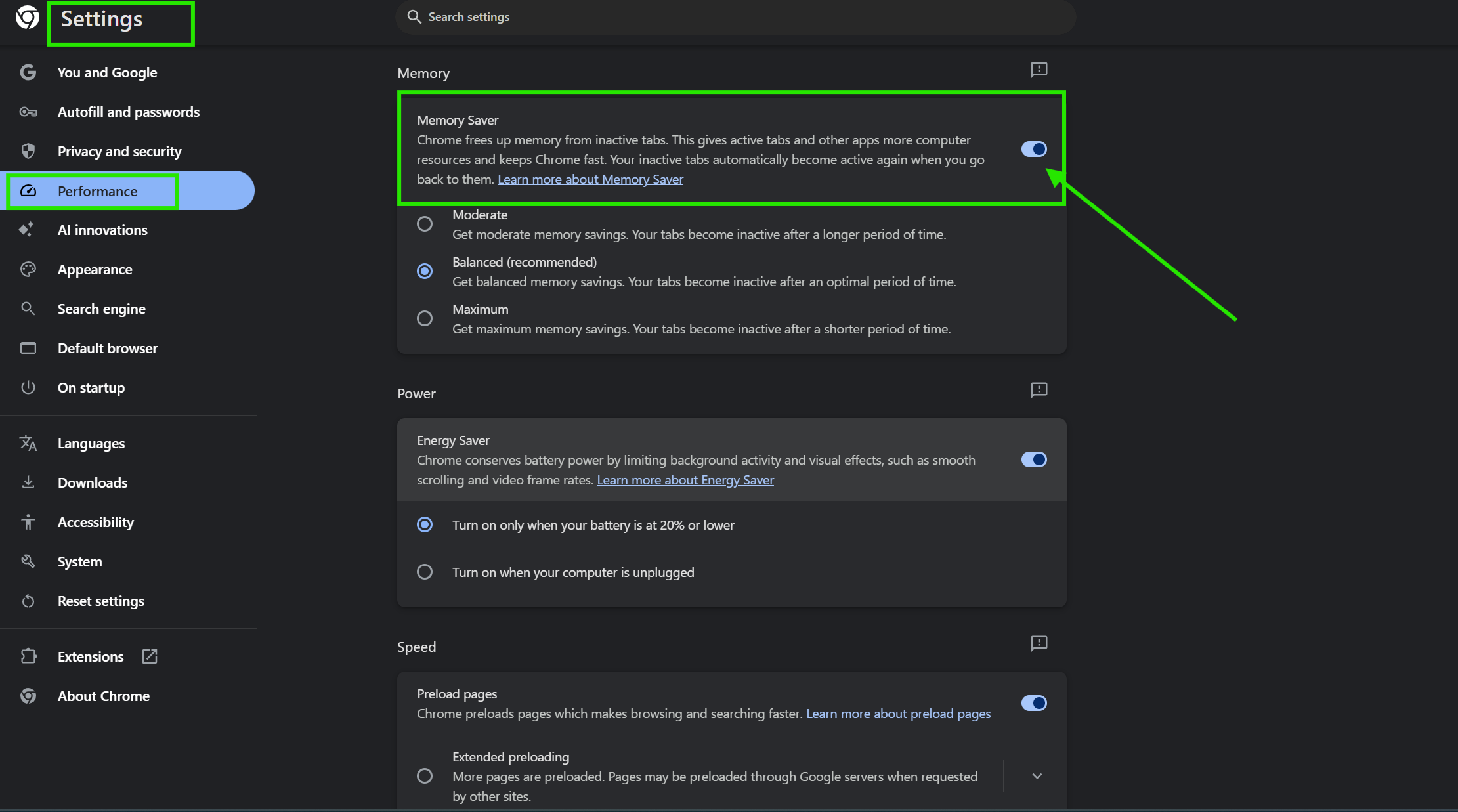
Memory Saver: If you have many tabs open, go to Settings > Performance and turn on Memory Saver. This frees up RAM from inactive tabs.
5. Finalizing
The final step is to make Chrome easy to find.
-
Right-click the Chrome icon on your taskbar and select Pin to taskbar.
-
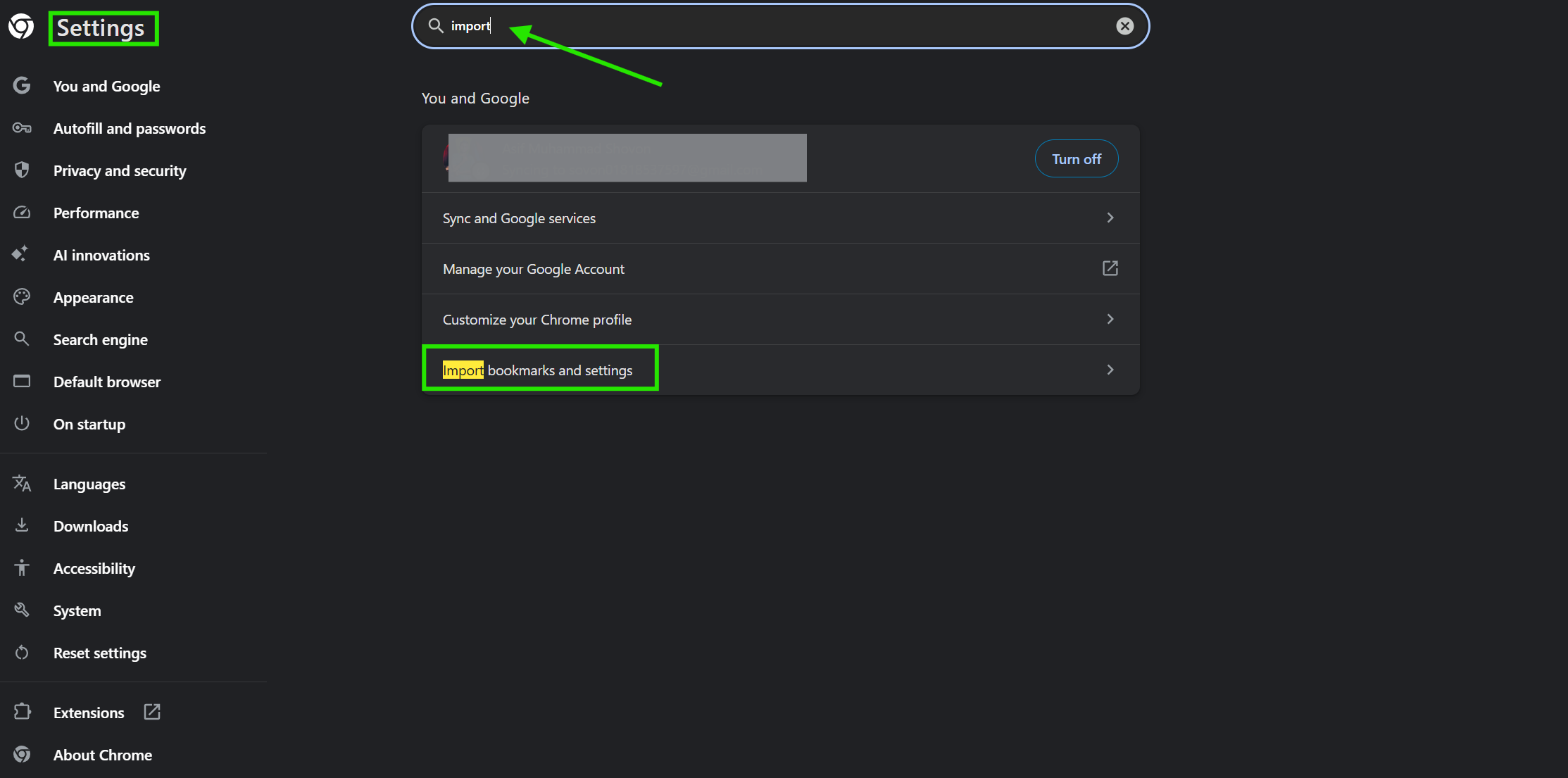
If you have bookmarks in Edge, Chrome will ask if you want to import them during the first launch. Click Import to bring over your favorites and save passwords.
-
Close the installer file in your Downloads folder to save space. You no longer need
ChromeSetup.exeOnce the browser is running.
Quick Tips
-
Keyboard Shortcuts: Press
Ctrl + Tfor a new tab orCtrl + Shift + Tto reopen a tab you accidentally closed. -
Omnibox: You can perform math calculations or unit conversions directly in the address bar without hitting enter.
-
Incognito Mode: Press
Ctrl + Shift + Nto browse without saving your history or cookies. -
Dark Mode: Chrome follows your Windows theme. Change your Windows personalization settings to "Dark" to enable dark mode in Chrome automatically.
Common Mistakes to Avoid
-
Third-Party Sites: Never download Chrome from unofficial websites. These versions may contain bundled malware or outdated software.
-
Interrupted Downloads: Do not turn off your Wi-Fi or close your laptop while the installer is running. This can lead to a corrupted installation.
-
Skipping Updates: Chrome usually updates itself. However, if you see a colored arrow in the top right corner, click it to apply the latest security patches.
-
Running Too Many Extensions: Each extension uses RAM. Only keep the ones you use daily to prevent the browser from slowing down.
Pricing & Availability
Google Chrome is completely free to download and use. There are no subscription fees or hidden costs for the browser itself.
While this guide focuses on Windows 10 and Windows 11, Chrome is a multi-platform tool. You can install it on almost any modern device to keep your data synced.
-
Desktop: Available for Windows (10, 11, and Server 2016+), macOS (Monterey 12 or later), and major Linux distributions like Ubuntu, Debian, and Fedora.
-
Mobile: You can download the Chrome app on Android (version 10 or later) and iOS (version 17 or later).
You can start a search on your Linux workstation and pick it up later on your iPhone or Android tablet without losing your open tabs. Chrome remains the most compatible browser for modern web standards.
Final Verdict
Google Chrome is a powerful tool that makes the internet faster and more productive. Its ability to sync across devices and its massive library of extensions make it the best choice for most Windows users. Following this guide ensures you have a clean, secure installation.
Download Google Chrome today to experience a faster, more modern way to browse the web.
Click Here to Download Google Chrome
FAQs
Q1: How do I update Google Chrome on Windows?
Ans: Chrome updates automatically in the background. To check manually, click the three dots in the corner, go to Help, and select About Google Chrome. It will search for and install any available updates.
Q2: Can I install Chrome without an internet connection?
Ans: The standard installer requires an internet connection. If you need to install it on a computer without internet, you must download the "Chrome Standalone Installer" on a different device and transfer it via a USB drive.
Q3: Is Google Chrome safe for online banking?
Ans: Yes, Chrome is very secure. It uses "Sandboxing" to prevent malicious websites from affecting your computer and alerts you if a site is not using an encrypted (HTTPS) connection.
Q4: Why is Chrome using so much RAM?
Ans: Chrome treats every tab and extension as a separate process. This prevents the whole browser from crashing if one tab fails. You can manage this by using the built-in Task Manager inside Chrome (press Shift + Esc).
Q5: How do I uninstall Google Chrome?
Ans: Open the Start menu, type Add or remove programs, find Google Chrome in the list, and click Uninstall. This will remove the application from your Windows system.
Comments
Let us know about your thoughts
Explore more articles related to Google Chrome
Here you will find all the latest tips and tricks about Google Chrome. Also you will get many solution of problems which you may face while using this app.

Published at: Feb 14, 2025
How to reset Google Chrome Browser
In this blog, I am going to show you how to reset Google Chrome Browser settings to...
Published at: Feb 14, 2025
Sign in to Chrome Missing
In this blog, I am going to show you how you can fix the “Sign...
Published at: Jan 04, 2026
How to install Google Chrome on Windows
Most Windows computers come with Microsoft Edge as the default browser. While Edge is capable, you...

Published at: Jan 19, 2026
Best Chrome Extensions to Improve Your Browsing Experience in 2026
Google Chrome is the most widely used web browser in the world, currently holding a...


Browsing The Internet With Functionality And Ease
You need a reliable browser to access the Internet, and many browsers are available. However, Google Chrome is the most prominent. It is an internet browser with many functionalities and robust security. The developer team consistently updates Google Chrome, continuously improving the user experience.