How to Speed Up Chrome – Complete Step-by-Step Guide


Asif Mohammad Sovon
Asif Mohammad Sovon, IT Assistant at Bangladesh Air Force and Fileion tech writer, simplifies tech t...
Does your browser feel like it is crawling? We have all experienced the frustration of a spinning loading icon when we are in a hurry. A slow browser breaks your focus and wastes valuable time.
Speeding up your browser is about more than just convenience. It improves your productivity, saves battery life on laptops, and makes your online experience smoother. Whether you use your computer for work, gaming, or streaming, a fast browser is essential.
In this guide, you will learn how to clear out the digital clutter and optimize your settings for maximum speed. Let’s get into the basics before rolling into the hands-on steps.
What is Google Chrome?
Google Chrome is a cross-platform web browser developed by Google. It is built on the open-source Chromium project and is currently the most popular browser in the world.
It is used by students, professionals, and casual users alike. Because it integrates deeply with Google services, it allows you to sync your history and bookmarks across all your devices. The primary goal of Chrome is to provide a fast, secure, and stable way to navigate the internet.
Key Features
-
Fast Page Loading: Chrome uses a powerful engine to render complex websites quickly.
-
Memory Management: New features allow the browser to freeze inactive tabs to save system resources.
-
Customization: You can add extensions to improve your workflow or change the look of the interface.
-
Security: Chrome blocks dangerous sites and warns you about compromised passwords automatically.
-
Cross-Device Sync: Your data follows you from your phone to your desktop seamlessly.
Step-by-Step Guide: How to Speed Up Chrome
1. Getting Started
Before you change any settings, make sure you are running the latest version of the software. Google releases updates frequently to fix bugs and improve speed.
-
Open Chrome on your computer.
-
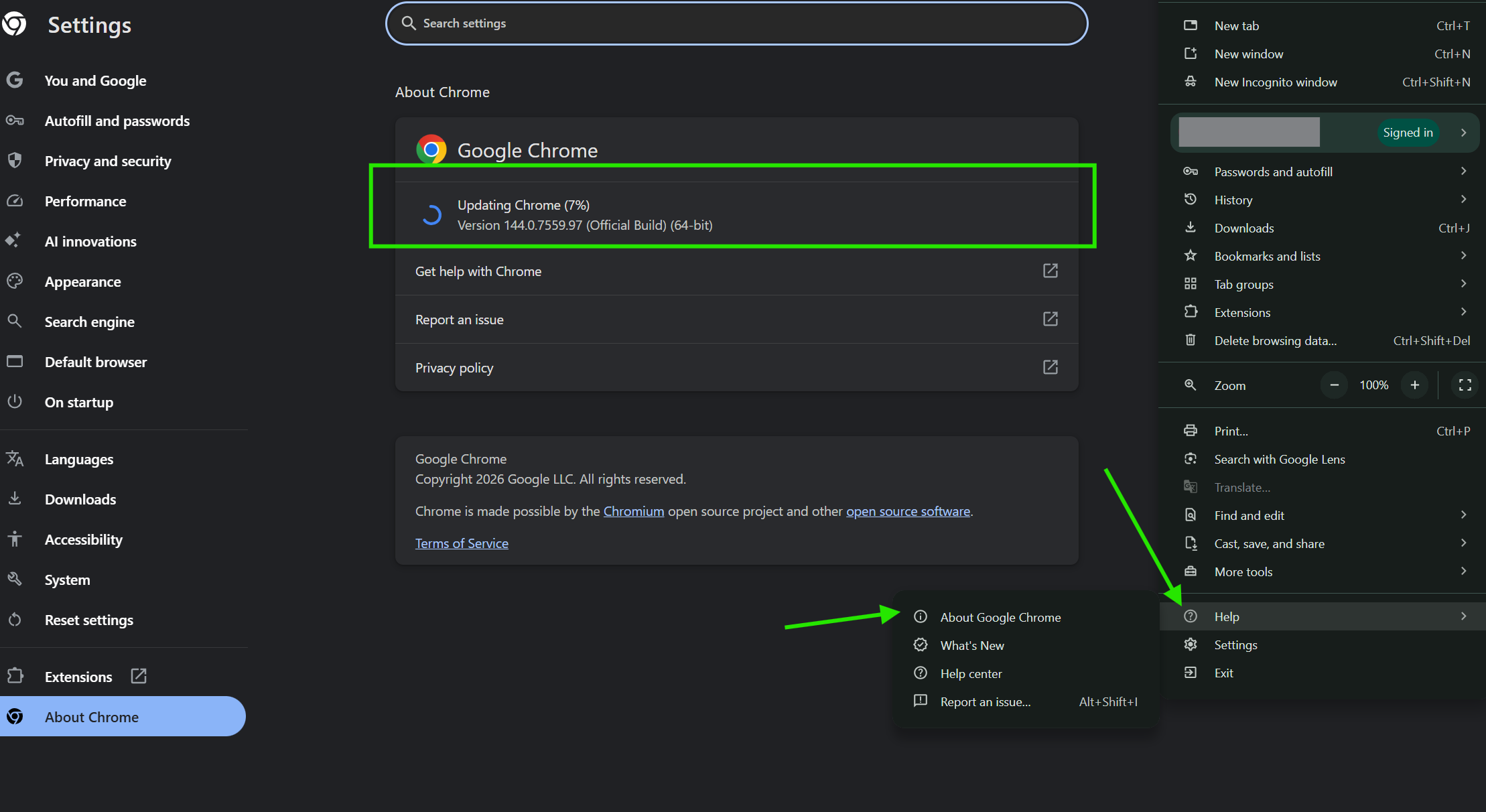
Click the three vertical dots in the top-right corner.
-
Hover over Help and select About Google Chrome.
-
The browser will automatically check for updates and install them.
-
Relaunch the browser if prompted.
If your current installation feels corrupted or won't update, it is often best to start fresh. You can download the latest version of Chrome from Fileion to ensure you have a clean, optimized installer.
2. Initial Setup
The easiest way to boost speed is to clear out old data. Over time, Chrome stores images and files to help pages load faster later, but too much data can actually slow things down.
-
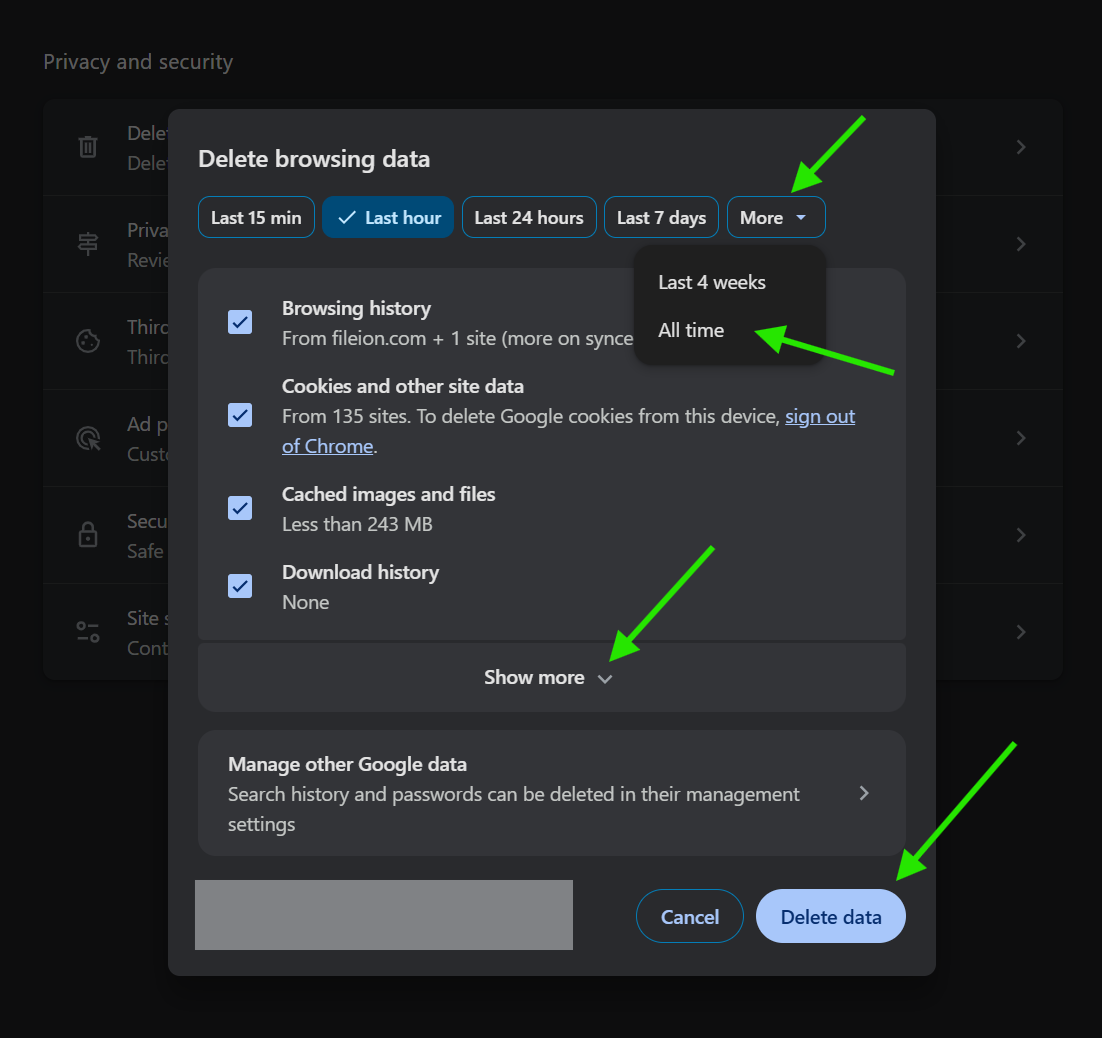
Press Ctrl + Shift + Delete on your keyboard.
-
Set the time range to All time.
-
Check the boxes for Cookies and other site data, and Cached images and files.
-
Click Clear data.
3. Core Action Step
Extensions are helpful, but they use a lot of RAM. Every active extension is a background process that competes for your computer's power.
-
Type
chrome://extensions/into your address bar and press Enter.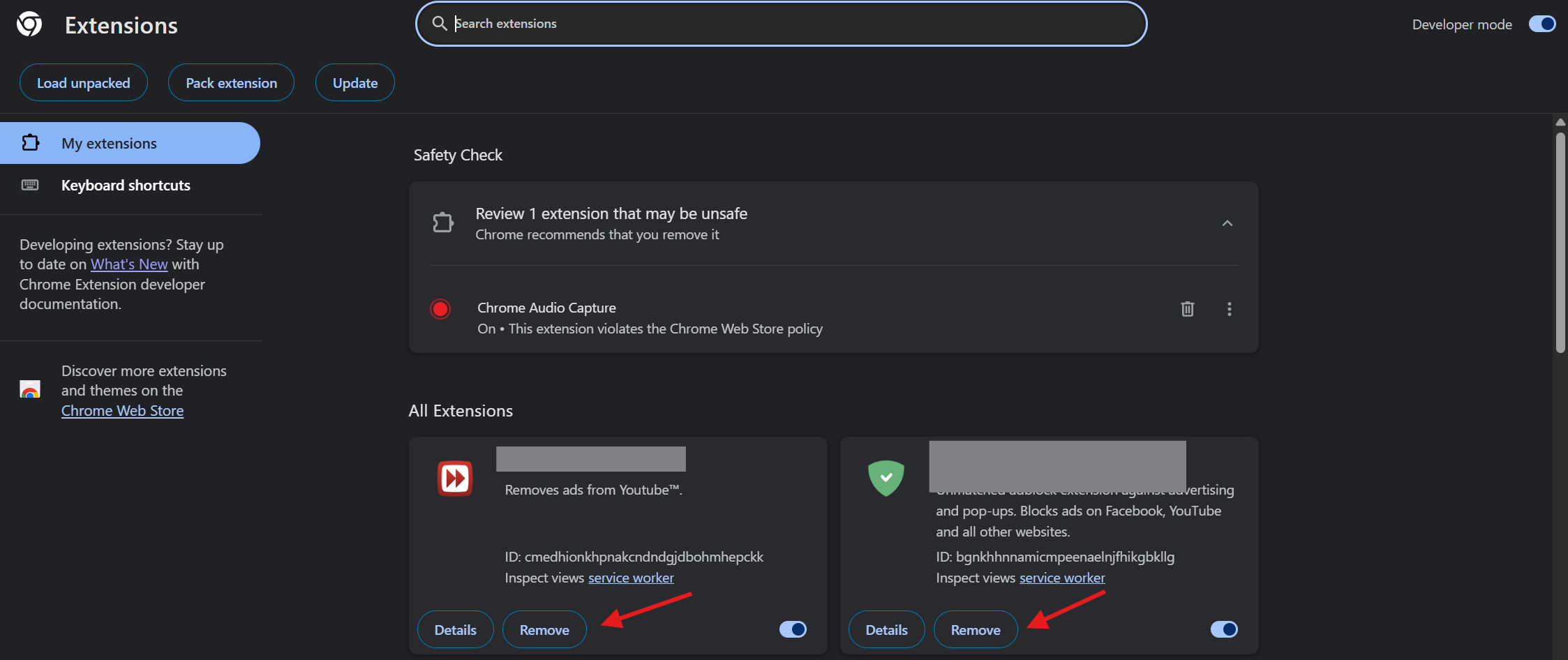
-
Look through the list of installed tools.
-
Toggle off any extension you do not use daily.
-
Click Remove for any extension you do not recognize or no longer need.
-
Use the Chrome Task Manager (Shift + Esc) to see which tabs or extensions are consuming the most memory.
4. Customization & Optimization
Google has added specific performance modes to help users with older hardware or many open tabs.
-
Go to Settings and click on the Performance tab on the left.
-
Turn on Memory Saver. This frees up memory from tabs you aren't using.
-
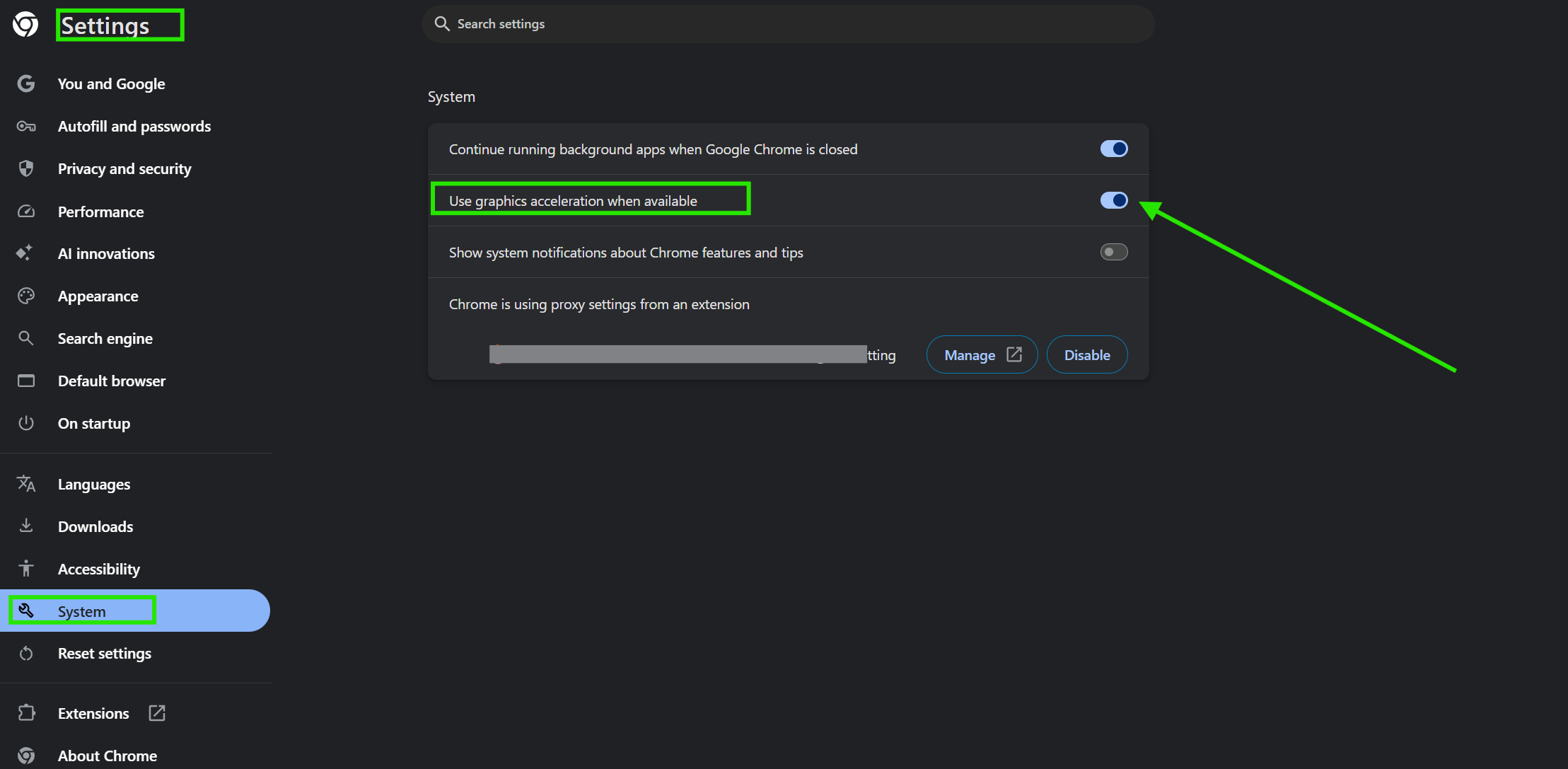
Go to the System tab in Settings.
-
Ensure that the use of graphics acceleration, when available, is turned on. This lets Chrome use your computer's graphics card to handle visual tasks.
-
Toggle off Continue running background apps when Google Chrome is closed to save system resources when the browser is shut.
5. Finalizing & Saving
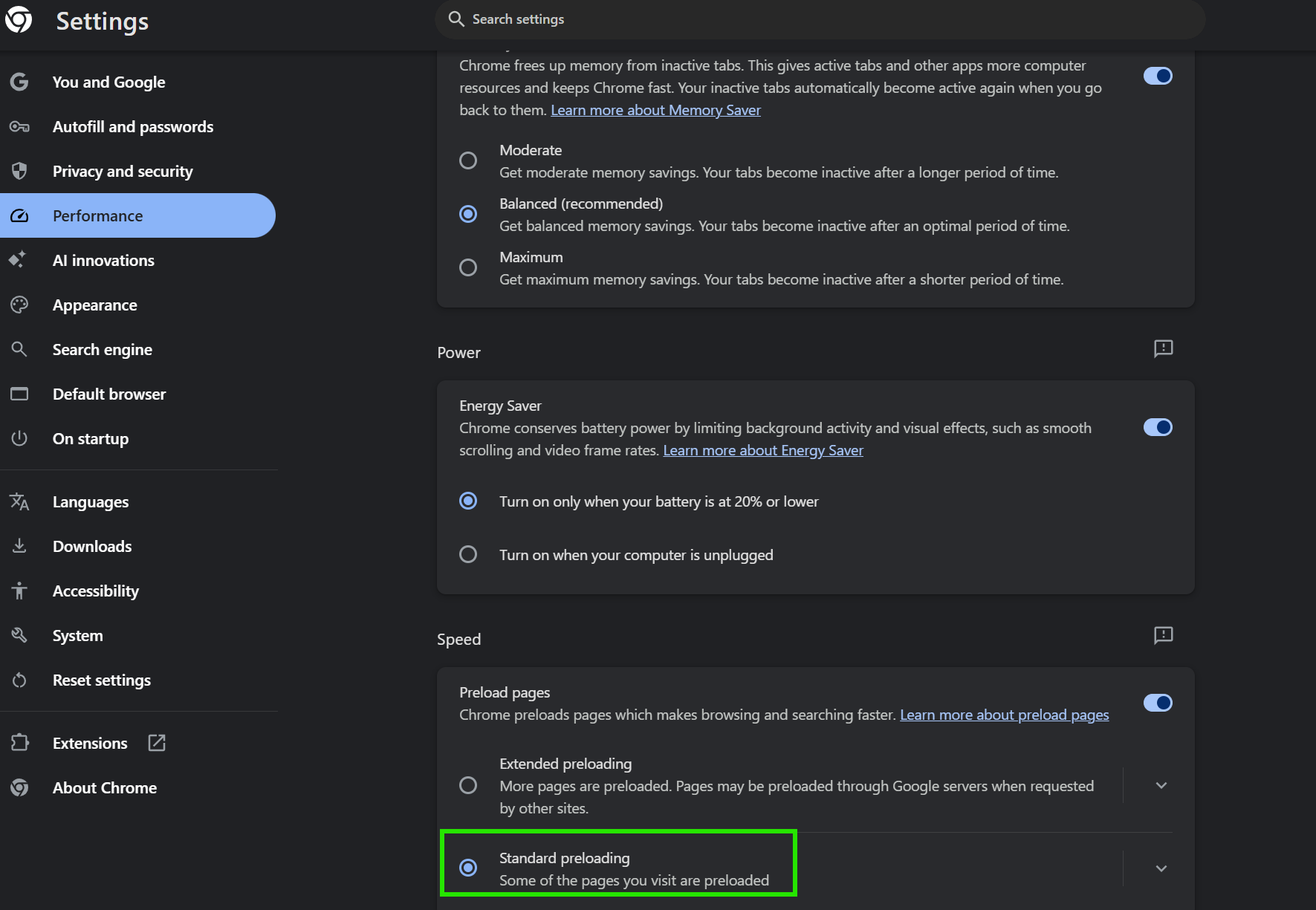
Once you have adjusted your settings, ensure that the "Preload pages" feature is active. This feature predicts which links you might click and starts loading them in the background.
-
In Settings, go to Performance.
-
Find the Speed section.
-
Turn on Preload pages.
-
Select Standard preloading for a balance of speed and data use.
-
Close and restart Chrome to apply all changes.
Quick Tips
-
Use Shortcuts: Use
Ctrl + Tfor a new tab andCtrl + Shift + Tto reopen a tab you accidentally closed. -
Limit Open Tabs: Use the "Reading List" feature to save pages for later instead of keeping fifty tabs open.
-
Check Your Internet: Sometimes the browser is fast, but your DNS is slow. Consider using Google Public DNS or Cloudflare.
-
Search Simply: You can perform math or weather checks directly in the address bar without hitting Enter.
Common Mistakes to Avoid
-
Too Many Extensions: Having twenty active extensions will slow down even the fastest PC.
-
Ignoring Updates: Skipping updates leaves you vulnerable to security risks and misses out on speed patches.
-
Keeping Too Much History: If you never clear your cache, the database becomes bulky and slows down startup times.
Pricing & Availability
Google Chrome is completely free to download and use on Windows, macOS, Linux, iOS, and Android. There are no subscription fees for the browser itself.
Final Verdict
Speeding up Chrome is a simple process that anyone can do in less than five minutes. By managing your extensions, clearing your cache, and enabling Performance Mode, you can significantly reduce lag. A well-maintained browser makes the internet feel instant again.
If your browser still feels slow after following these steps, your installation might be outdated or compromised. For the best experience, download the newest, optimized version of Chrome from Fileion today and see the difference immediately.
Click here to download Google Chrome
FAQs
Q1: Why is Chrome using so much RAM?
Ans: Chrome treats every tab and extension as a separate process. This prevents the whole browser from crashing if one page fails, but it requires more memory.
Q2: Will clearing my cache delete my passwords?
Ans: No. When you clear your cache, make sure the "Passwords and other sign-in data" box is unchecked to keep your login information safe.
Q3: Does "Memory Saver" mode close my tabs?
Ans: No. It simply puts inactive tabs to "sleep." When you click on them again, they reload and become active.
Q4: How often should I clear my browsing data?
Ans: For most users, once a month is enough to keep the browser running smoothly without losing too much "cached" speed.
Q5: Can I speed up Chrome on my phone?
Ans: Yes. The mobile app has a "Lite mode" or similar data-saving settings in the menu that can help pages load faster on slow connections.
Comments
Let us know about your thoughts
Explore more articles related to Google Chrome
Here you will find all the latest tips and tricks about Google Chrome. Also you will get many solution of problems which you may face while using this app.

Published at: Feb 14, 2025
How to reset Google Chrome Browser
In this blog, I am going to show you how to reset Google Chrome Browser settings to...
Published at: Feb 14, 2025
Sign in to Chrome Missing
In this blog, I am going to show you how you can fix the “Sign...

Published at: Jan 04, 2026
How to install Google Chrome on Windows
Most Windows computers come with Microsoft Edge as the default browser. While Edge is capable, you...

Published at: Jan 19, 2026
Best Chrome Extensions to Improve Your Browsing Experience in 2026
Google Chrome is the most widely used web browser in the world, currently holding a...


Browsing The Internet With Functionality And Ease
You need a reliable browser to access the Internet, and many browsers are available. However, Google Chrome is the most prominent. It is an internet browser with many functionalities and robust security. The developer team consistently updates Google Chrome, continuously improving the user experience.