How to Disable Chrome Notifications – Complete Step-by-Step Guide


Asif Mohammad Sovon
Asif Mohammad Sovon, IT Assistant at Bangladesh Air Force and Fileion tech writer, simplifies tech t...
What is the Chrome Notification System?
Key Benefits of Disabling Notifications
Step-by-Step Guide: How to Disable Chrome Notifications
3. Core Action Step: Disabling All Notifications
4. Customization & Optimization: Managing Specific Sites
Q1: How do I stop Chrome notifications on Android?
Q2: Can I block notifications for just one website?
Q3: Why do I keep getting notifications even after blocking them?
Q4: Will disabling notifications stop my downloads from showing?
You are in the middle of a focused task when a noisy pop-up appears in the corner of your screen. It is an alert from a website you visited once three months ago. These interruptions break your concentration and can feel like a constant invasion of your digital space.
Managing these alerts is essential for maintaining productivity and keeping your desktop organized. Whether you want to block everything or just a few specific sites, Google Chrome provides deep customization options to put you back in control.
In this guide, you will learn how to disable notifications globally, manage specific site permissions, and utilize "quiet messaging" to keep alerts discreet. Let’s dive into the basics before proceeding to the hands-on phases.
What is the Chrome Notification System?
Chrome notifications are small alert boxes that appear on your desktop or mobile device. Websites use them to share news, updates, or promotions. While some are helpful, many sites use them aggressively to grab your attention.
Both casual users and professionals use these settings to reduce digital noise. By mastering these controls, you can ensure that only the most important information reaches you while you work or browse.
Key Benefits of Disabling Notifications
- Improved Focus: Removing visual and auditory interruptions helps you stay in the flow state.
- Enhanced Privacy: Prevent private messages or site names from appearing on your screen during presentations or meetings.
- Better Performance: Reducing the number of active background processes can slightly improve system responsiveness.
- Reduced Clutter: Keep your Windows Action Center or macOS Notification Center clean and manageable.
Step-by-Step Guide: How to Disable Chrome Notifications
1. Getting Started
To manage notifications, you need the latest version of Google Chrome installed on your Windows, Mac, or Linux computer. You will also need access to the browser’s internal settings menu. Ensure you have a stable internet connection if you plan to sync these settings across your Google account.
2. Initial Setup
- Open Google Chrome on your computer.
- Locate the three vertical dots in the top-right corner.
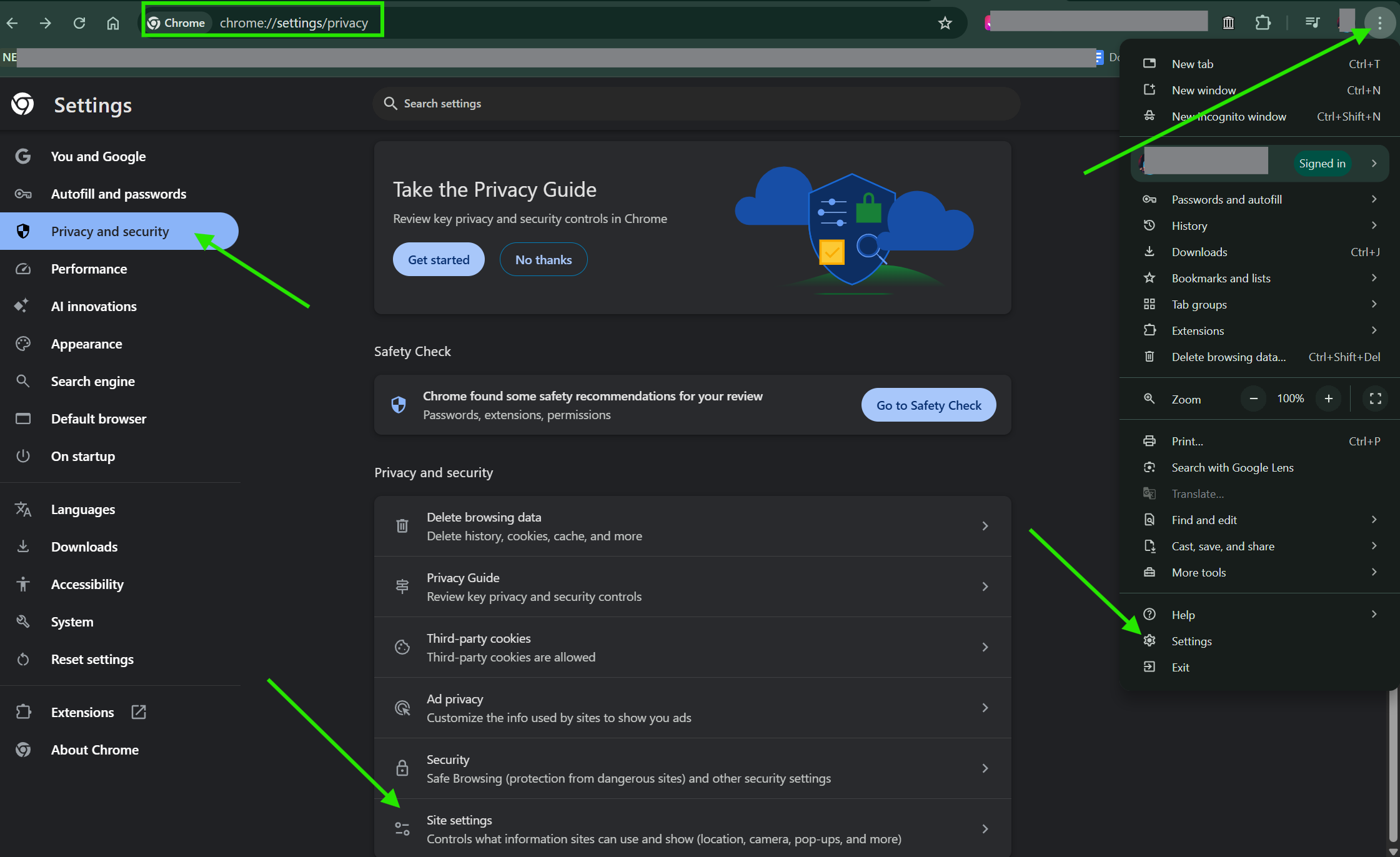
- Select Settings from the dropdown menu.
- On the left-hand sidebar, click on Privacy and security.
3. Core Action Step: Disabling All Notifications
Once you are in the Privacy and Security section, follow these steps to stop sites from asking to send alerts:
- Click on Site Settings.
- Scroll down to the "Permissions" section and click on Notifications.
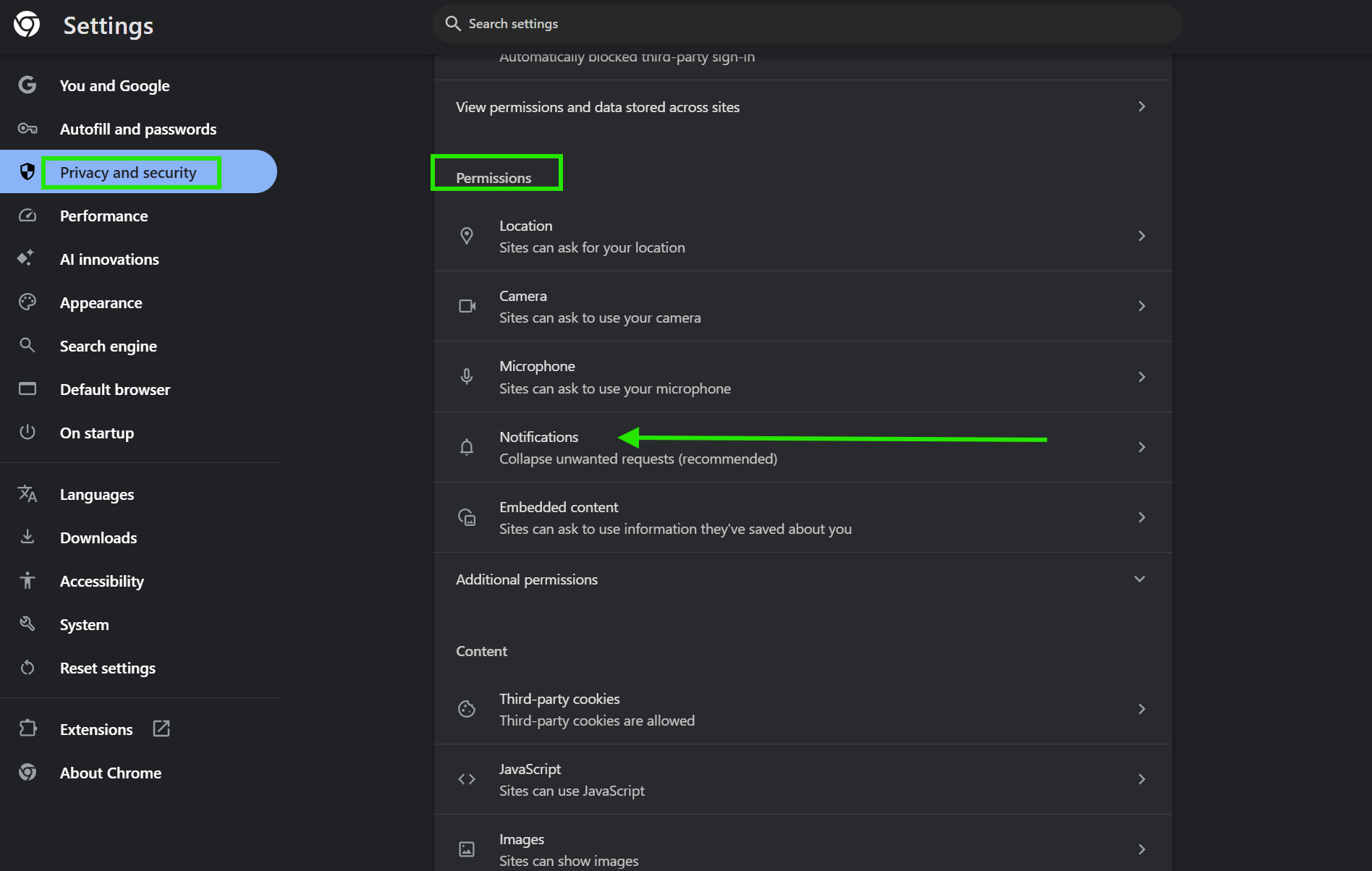
- Under "Default behavior," select the option: Don't allow sites to send notifications.
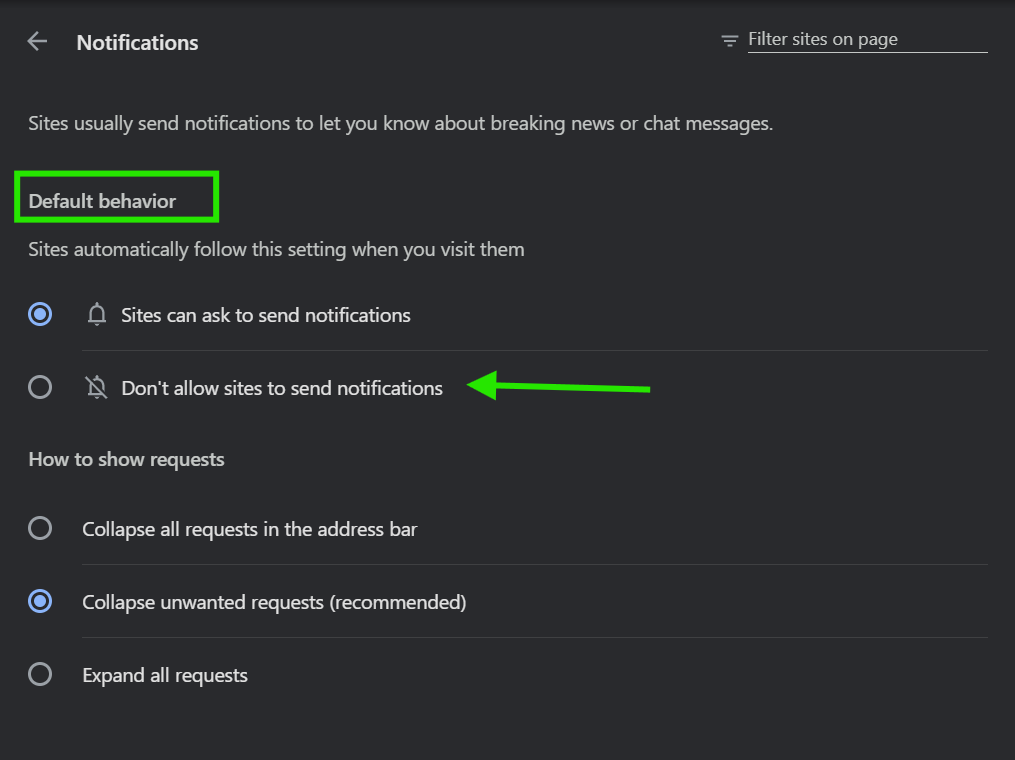
By choosing this, you will no longer see pop-up requests from new websites you visit.
4. Customization & Optimization: Managing Specific Sites
Sometimes you want alerts from your email or calendar, but nothing else. You can manage these exceptions easily.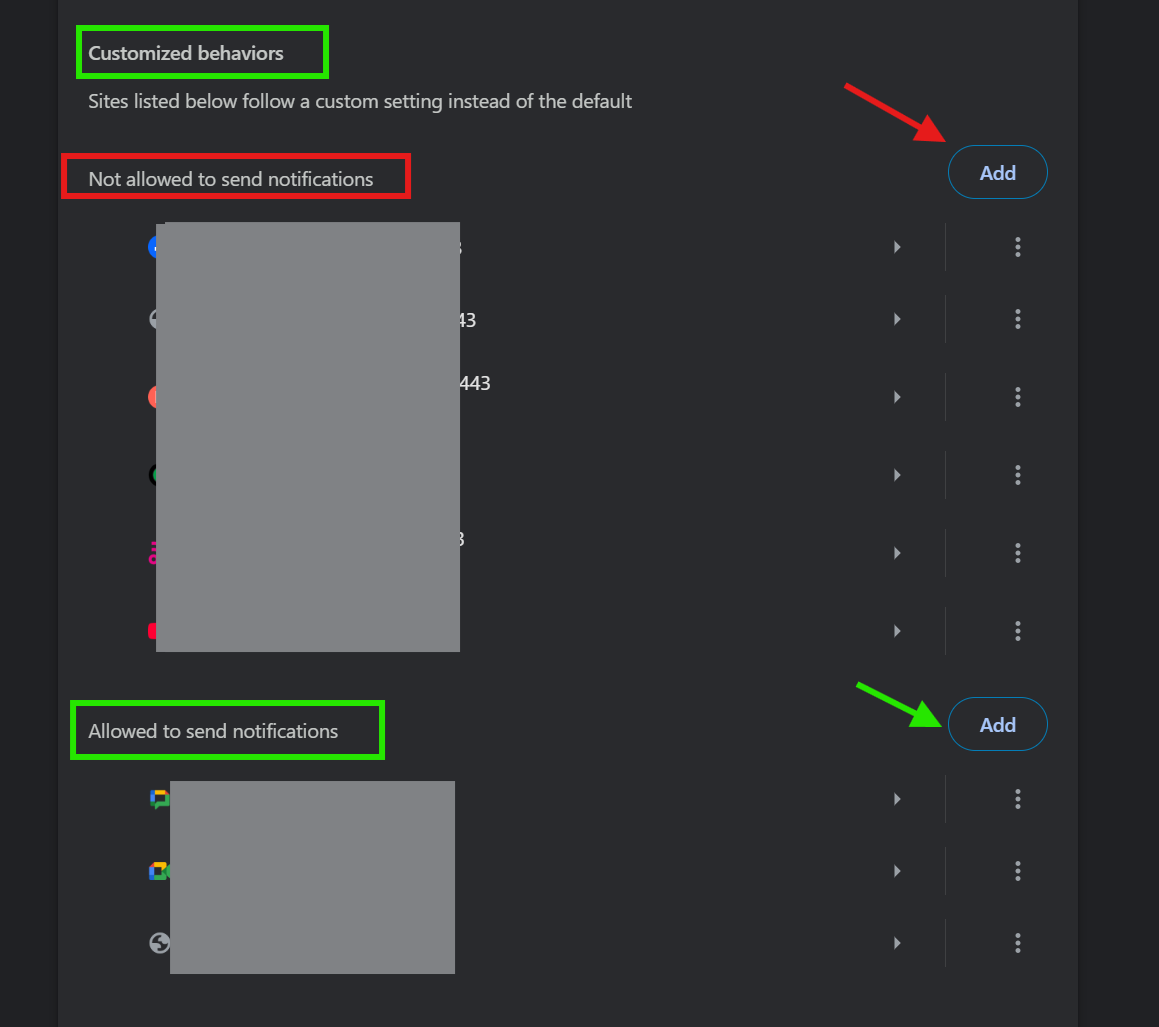
- To Block a Specific Site: Under the "Not allowed to send notifications" section, click Add. Type the web address (e.g., www.example.com) and click Add.
- To Allow a Specific Site: Under the "Allowed to send notifications" section, click Add and enter the URL of the site you trust.
- Enable Quiet Messaging: If you don't want to block all requests but hate pop-ups, toggle on Use quieter messaging. This prevents notification prompts from interrupting you by tucking them into a small bell icon in the address bar.
5. Finalizing & Saving
Chrome saves these changes automatically. You do not need to click the "Save" button. Simply close the Settings tab and continue browsing. If you have Chrome sync enabled, these preferences will often be carried over to other desktop devices where you are signed into the same Google account.
Quick Tips
|
Tip Type |
Action |
|
Shortcut |
Type 'chrome://settings/content/notifications' in your address bar to jump straight to the menu. |
|
Quick Block |
Right-click a notification when it appears and select "Go to browser settings" to block it instantly. |
|
Mobile Sync |
On Android, go to Settings > Notifications within the Chrome app to mirror your desktop preferences. |
Common Mistakes to Avoid
- Blocking System Alerts: Users sometimes confuse Chrome notifications with Windows or macOS system alerts. If the pop-up looks like a system update, it is likely managed in your OS settings, not Chrome.
- Forgetting "Incognito" Rules: Changes made in a standard window apply to your profile. However, if you allow a site in Incognito mode, it may behave differently depending on your session settings.
- Ignoring the "Bell" Icon: If you enable "Quieter messaging," you might miss important confirmation alerts. Remember to check the address bar for the small bell icon if a site claims it sent you a code.
Pricing & Availability
The notification management features are a core part of the Google Chrome browser. They are free to use and available on all versions of the browser (Desktop, Android, and iOS).
For users who want even more advanced control over their browsing experience, our Notification Manager Tool offers automated filtering and one-click cleanup for all your installed browsers. You can download the software directly from our site to get started with advanced privacy protections.
Final Verdict
Disabling Chrome notifications is one of the simplest ways to reclaim your digital focus. Whether you choose to block everything or curate a specific list of allowed sites, the process takes less than two minutes.
This feature is valuable for anyone who spends significant time online and wants to minimize distractions. If you are tired of intrusive pop-ups, follow the steps above today or use our dedicated tool to automate your privacy settings.
FAQs
Q1: How do I stop Chrome notifications on Android?
Ans: Chrome app > three dots > Settings > Notifications > toggle off "Show notifications." Shortcut "chrome://settings/content/notifications" still works.
Q2: Can I block notifications for just one website?
Ans: Yes. Go to Settings > Privacy and security > Site Settings > Notifications. Scroll to the "Allow" list and click the three dots next to the site you want to remove, then select "Block."
Q3: Why do I keep getting notifications even after blocking them?
Ans: You may have a malicious browser extension or "adware" installed. Check your extensions list and remove anything you don't recognize.
Q4: Will disabling notifications stop my downloads from showing?
Ans: No. Download progress and completion alerts are part of the browser's UI and are not affected by website notification permissions.
Q5: Does this affect my Gmail notifications?
Ans: If you have Gmail open and have "Desktop Notifications" enabled in Gmail settings, blocking all Chrome notifications will stop those alerts as well. You must add mail.google.com to your "Allow" list to keep it.
Comments
Let us know about your thoughts
Explore more articles related to Google Chrome
Here you will find all the latest tips and tricks about Google Chrome. Also you will get many solution of problems which you may face while using this app.

Published at: Feb 14, 2025
How to reset Google Chrome Browser
In this blog, I am going to show you how to reset Google Chrome Browser settings to...
Published at: Feb 14, 2025
Sign in to Chrome Missing
In this blog, I am going to show you how you can fix the “Sign...

Published at: Jan 04, 2026
How to install Google Chrome on Windows
Most Windows computers come with Microsoft Edge as the default browser. While Edge is capable, you...

Published at: Jan 19, 2026
Best Chrome Extensions to Improve Your Browsing Experience in 2026
Google Chrome is the most widely used web browser in the world, currently holding a...


Browsing The Internet With Functionality And Ease
You need a reliable browser to access the Internet, and many browsers are available. However, Google Chrome is the most prominent. It is an internet browser with many functionalities and robust security. The developer team consistently updates Google Chrome, continuously improving the user experience.