Google Chrome 121.0.6167.85 Download for Windows 32 bit , 64 Bit
You are about to download Google Chrome, Version ( 121.0.6167.85 ) for Windows.
Click the button below to start downloading it:
Not working? Report this App.
All you need to know about this download
- Version: 121.0.6167.85
- Last updated: 27 September, 2026
- Supported OS: Windows 10, Windows 11
- File Name for 32 bit: next-steps.html?platform=win&standalone=1&statcb=0&installdataindex=empty&defaultbrowser=0
- File Size for 32 bit: 98.7 MB
- File Hash Code for 32 bit: ec88f034a8ffb4426c39156abce41681ea7b4261717f20025d3e44e9e8cea25a
- Google Chrome 121.0.6167.85 for 32 bit is scanned using 68 antivirus apps (Check VirusTotal Scan Report)
- File Name for 64 Bit: next-steps.html?platform=win64&standalone=1&statcb=0&installdataindex=empty&defaultbrowser=0
- File Size for 64 Bit: 111 MB
- File Hash Code for 64 Bit: d04e89988f95572537dac201a554a459d9476123a1f23b0b73599eccf4ebd68f
- Google Chrome 121.0.6167.85 for 64 Bit is scanned using 62 antivirus apps (Check VirusTotal Scan Report)
- After clicking on start download, this application will start downloading from Official Server
- The file is in its Orginal Form. Fileion does not bundle or repack or modify downloads in any way.
How to Install Google Chrome 121.0.6167.85 on Windows: Step-by-Step Guide
Firstly, download the Google Chrome installer from Fileion.
Afterward, find out the installer on your computer.
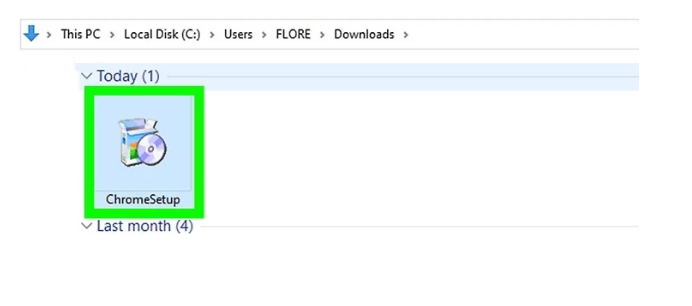
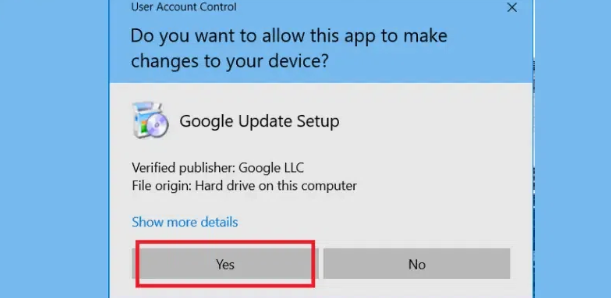
Launch the setup and click on yes to continue.
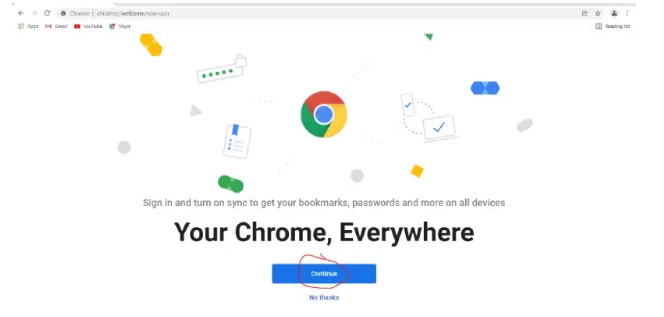
Wait until the installation is complete. Then, Google Chrome will launch automatically. Click on Continue to use Google Chrome.
Uninstall Google Chrome 121.0.6167.85 from Windows
Learn how to completely remove Google Chrome 121.0.6167.85 from your Windows system. Follow these simple steps to ensure a clean uninstallation process.
First, open Control Panel. Then from there click on “Uninstall a program“.
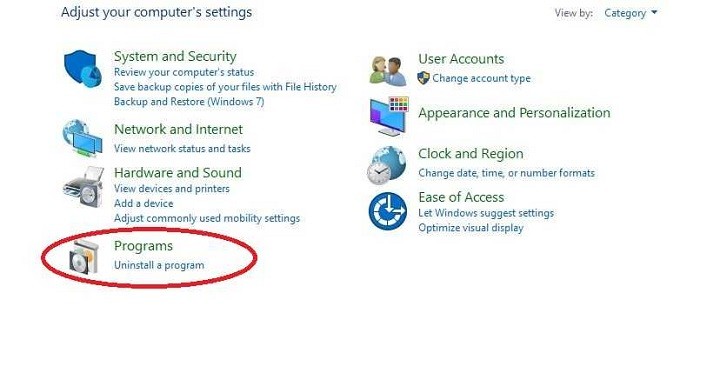
After completing Step 1, you will see a list of apps installed on your PC. From there, look for “Google Chrome“. Click on it and then click on “Uninstall“.
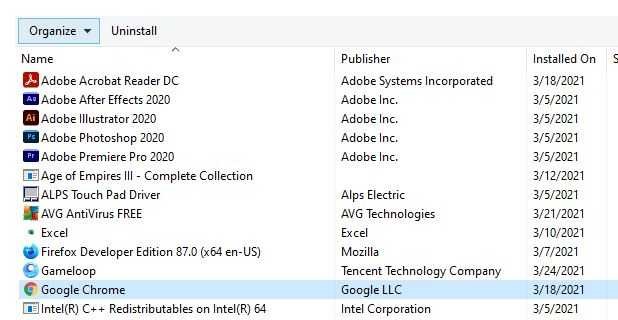
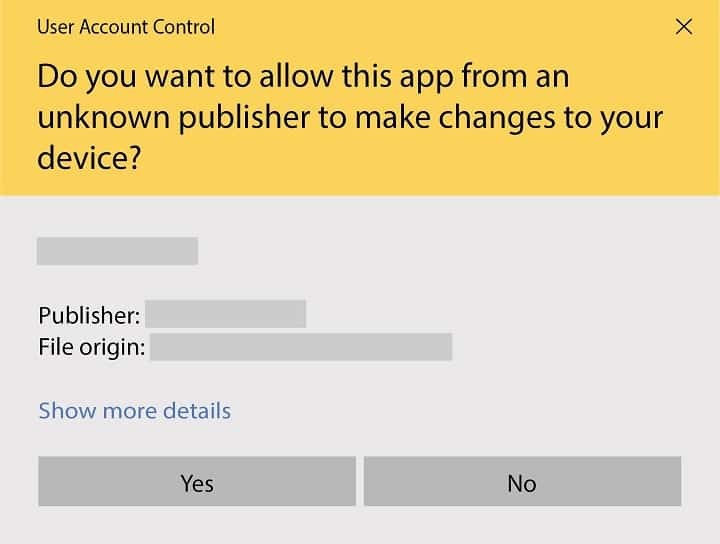
After clicking on Uninstall, a warning may pop up to ensure that you really want to uninstall the program. From there click on “Yes“
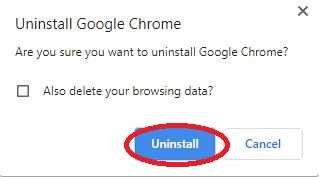
Again a pop-up will appear and ask you if you want to remove browsing history also. If you want to, then mark that and click on uninstall.
Your Uninstallation is now complete.
Google Chrome for Windows Change Log
Checkout what's new in Google Chrome for Windows Version (121.0.6167.85)
Searching for the latest and greatest features in Google Chrome 121.0.6167.85 for Windows? Look no further! This update packs a punch, empowering you with smarter browsing, enhanced security, and a touch of AI magic. Let's explore the highlights:
1. Unleash the Power of AI:
- Tab Organization Made Easy: Drowning in tabs? Chrome's new AI-powered "Tab Organizer" helps you whip them into shape. It automatically groups similar tabs, saving you time and mental clutter.
- Express Yourself with AI-Generated Themes: Unleash your creativity with Chrome's Theme Generator. Powered by AI, it analyzes websites you visit and generates personalized color palettes and themes, reflecting your unique online style. (This feature is still under development but expected to roll out soon!)
2. Security First, Always:
- 17 Security Fixes: Rest assured, your online safety is paramount. Chrome 121 tackles 17 critical security vulnerabilities, keeping your browsing experience protected from potential threats.
- Enhanced Phishing Protection: Stay ahead of cunning phishing attempts. Chrome's improved phishing detection algorithms work tirelessly to safeguard you from falling victim to fraudulent websites.
3. Performance & Efficiency:
- Speed Boost: Experience faster loading times and smoother browsing thanks to performance optimizations under the hood.
- Memory Management: Chrome 121 utilizes memory more efficiently, ensuring your system runs smoothly even with multiple tabs open.
4. Additional Features:
- Improved Web Share API: Sharing web content across platforms just got easier with the enhanced Web Share API.
- Accessibility Updates: Chrome 121 incorporates accessibility improvements, making the browsing experience more inclusive for everyone.
Upgrade Today & Experience the Difference:
Ready to unlock the latest features and enhancements in Chrome 121? Update your browser today and discover a smarter, safer, and more personalized browsing experience.
Also Available for
More from Google


Also, check the alternatives of Google Chrome


Explore more articles related to Google Chrome
Here you will find all the latest tips and tricks about Google Chrome. Also you will get many solution of problems which you may face while using this app.

Published at: Feb 14, 2025
How to reset Google Chrome Browser
In this blog, I am going to show you how to reset Google Chrome Browser settings to...
Published at: Feb 14, 2025
Sign in to Chrome Missing
In this blog, I am going to show you how you can fix the “Sign...

Published at: Jan 04, 2026
How to install Google Chrome on Windows
Most Windows computers come with Microsoft Edge as the default browser. While Edge is capable, you...

Published at: Jan 19, 2026
Best Chrome Extensions to Improve Your Browsing Experience in 2026
Google Chrome is the most widely used web browser in the world, currently holding a...


Explore more apps published on Fileion.Com

TLauncher
Minecraft Starts Here

Kutools for Excel
Work Smarter in Excel

Safari Browser
Browse Better, Stay Private

FxSound
Better Windows Audio Experience

Adobe Premiere Pro
Professional Editing, Simplified

HelpWire
Remote Support Simplified


